
Cinematic Golden-Hour Mountain Selfie
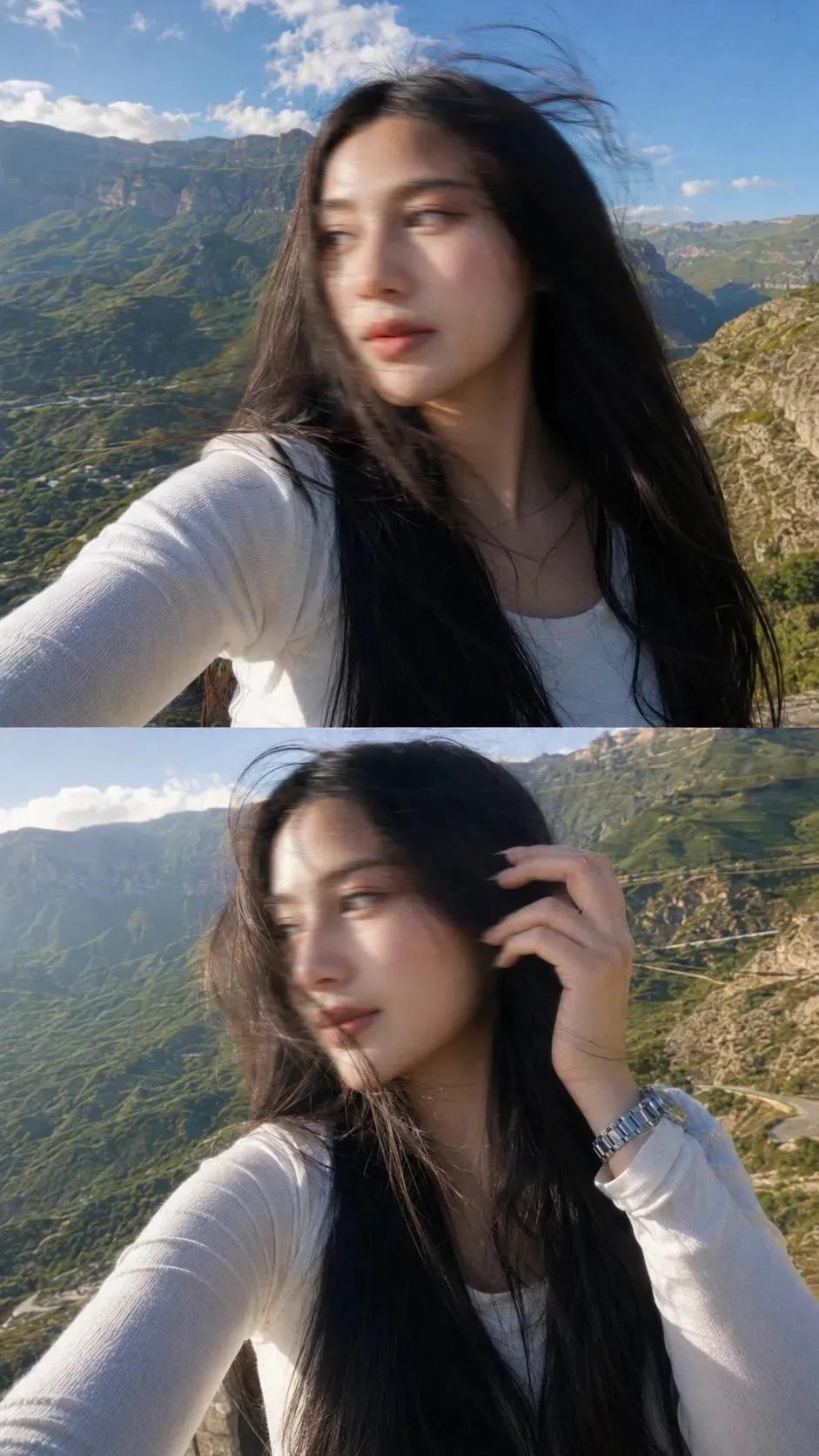
 OpenAI image model
See the image first, then inspect the sourced prompt behind it. Copy it, adapt it, or generate your own version with GPT Image 2.
Each result links to its complete prompt, original creator, and source.
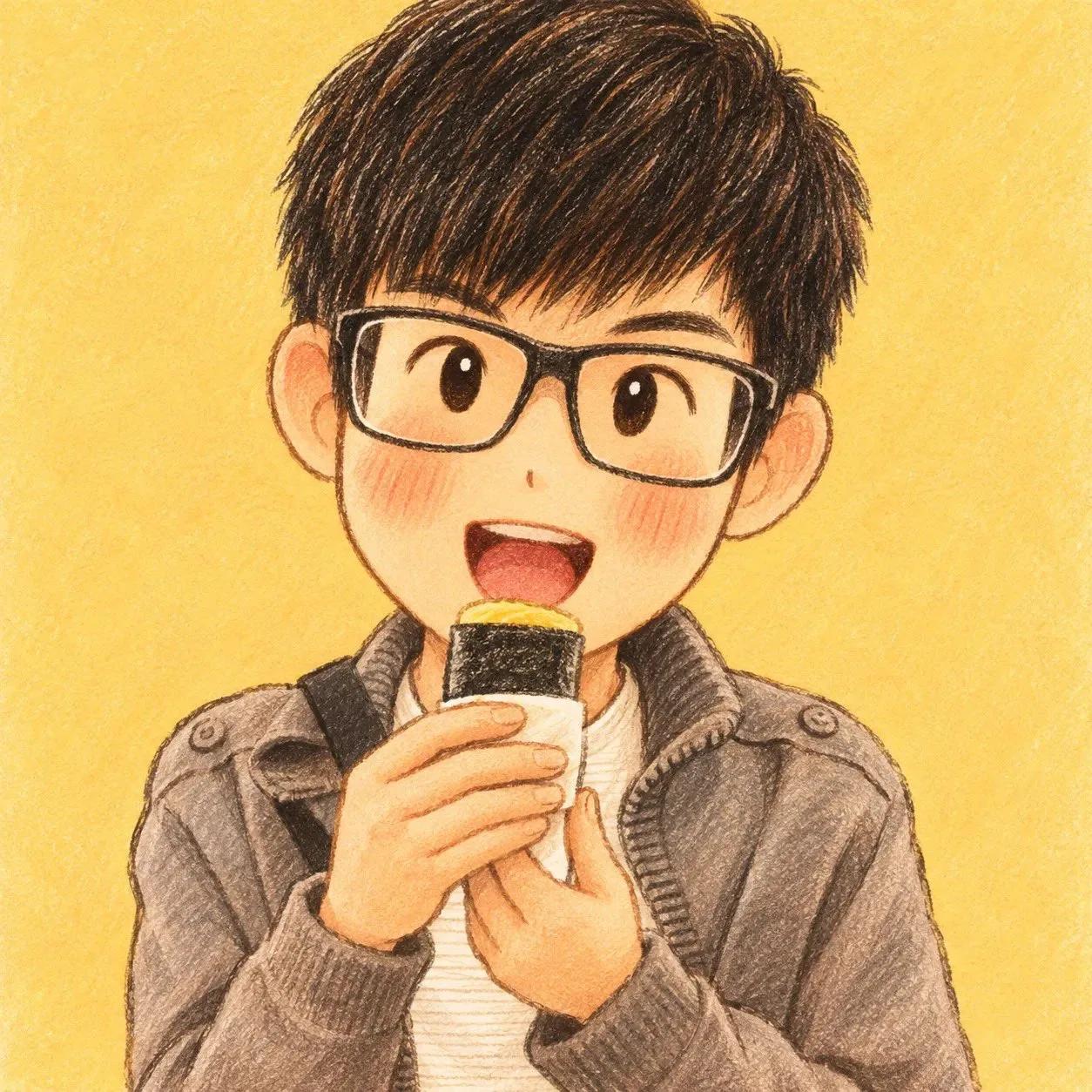
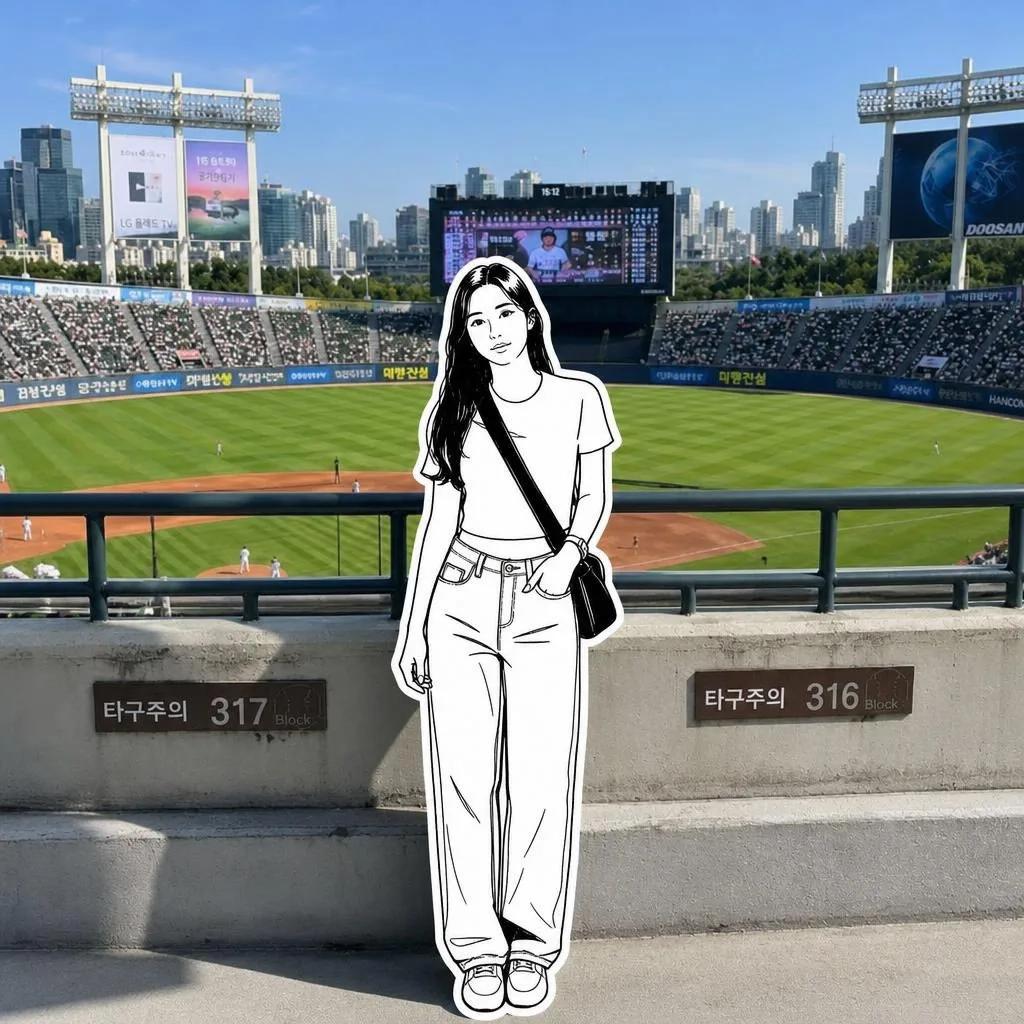
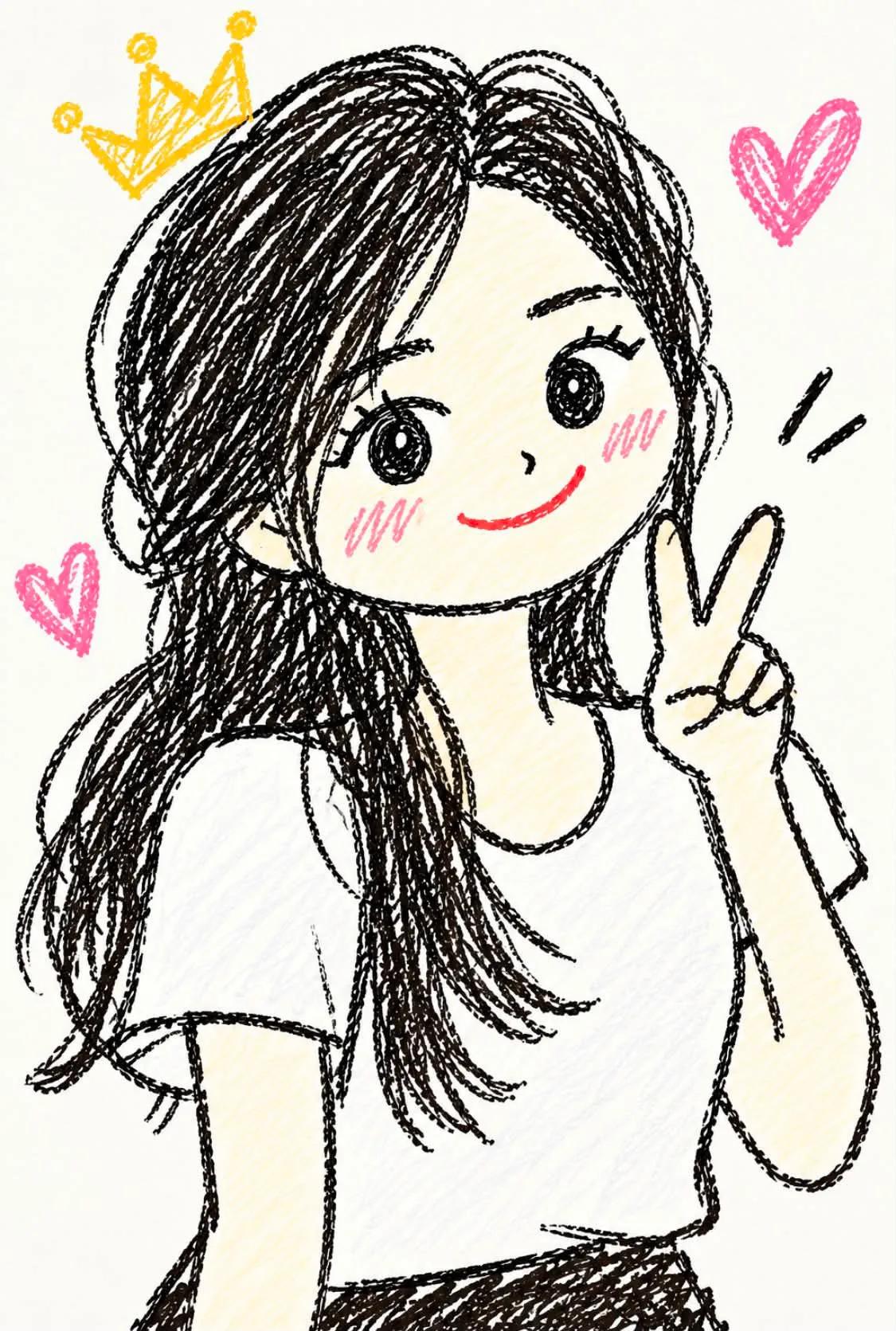
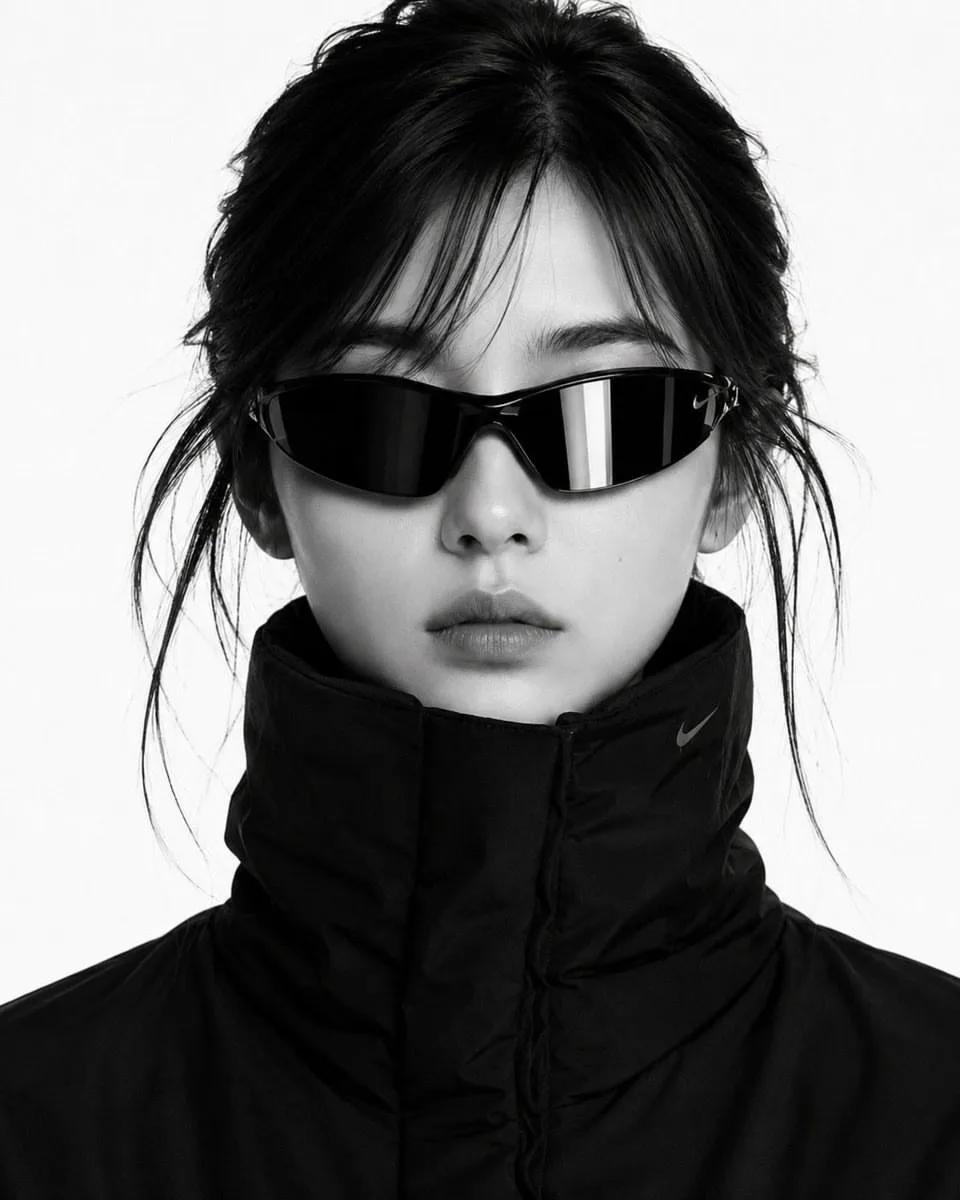
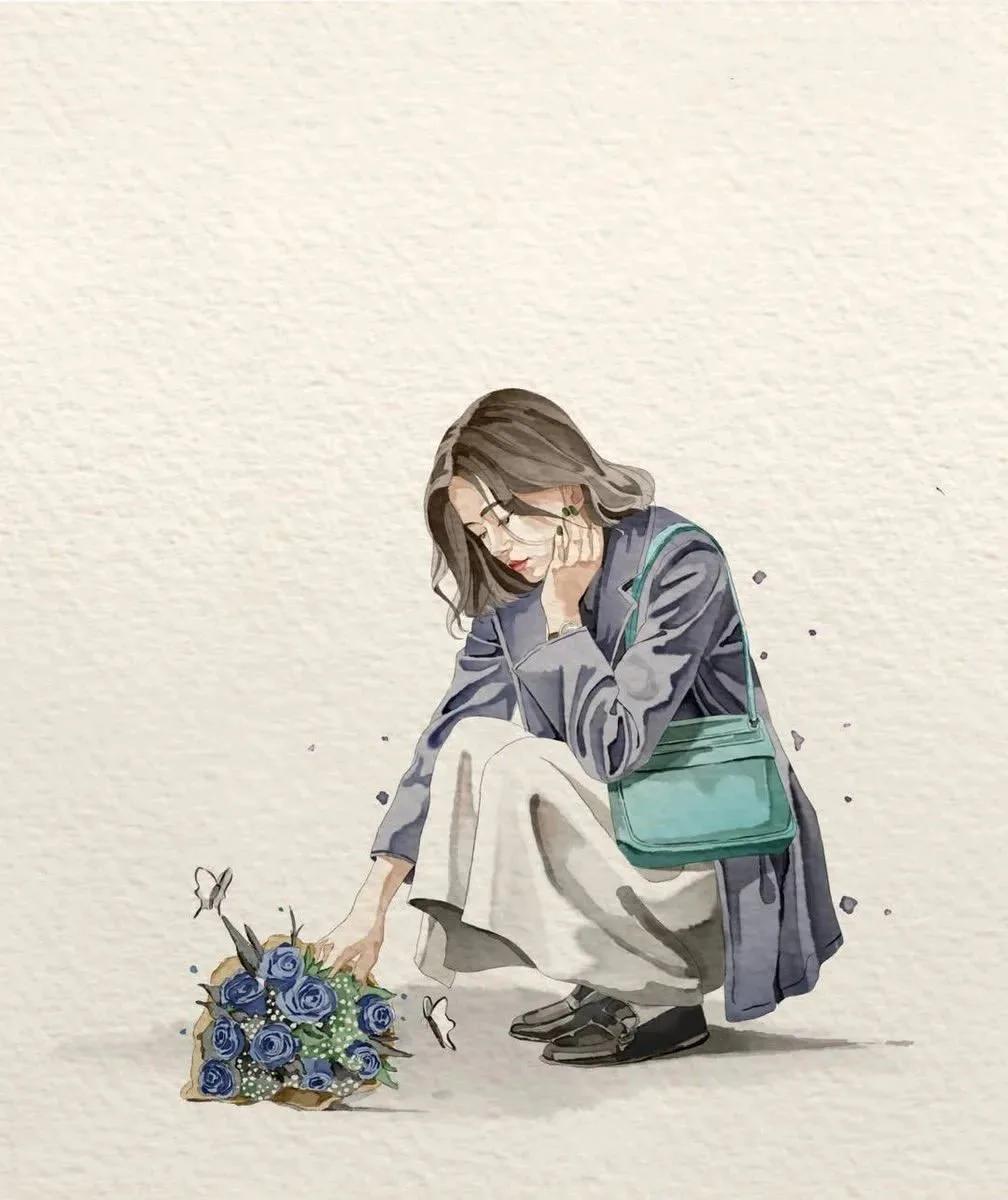
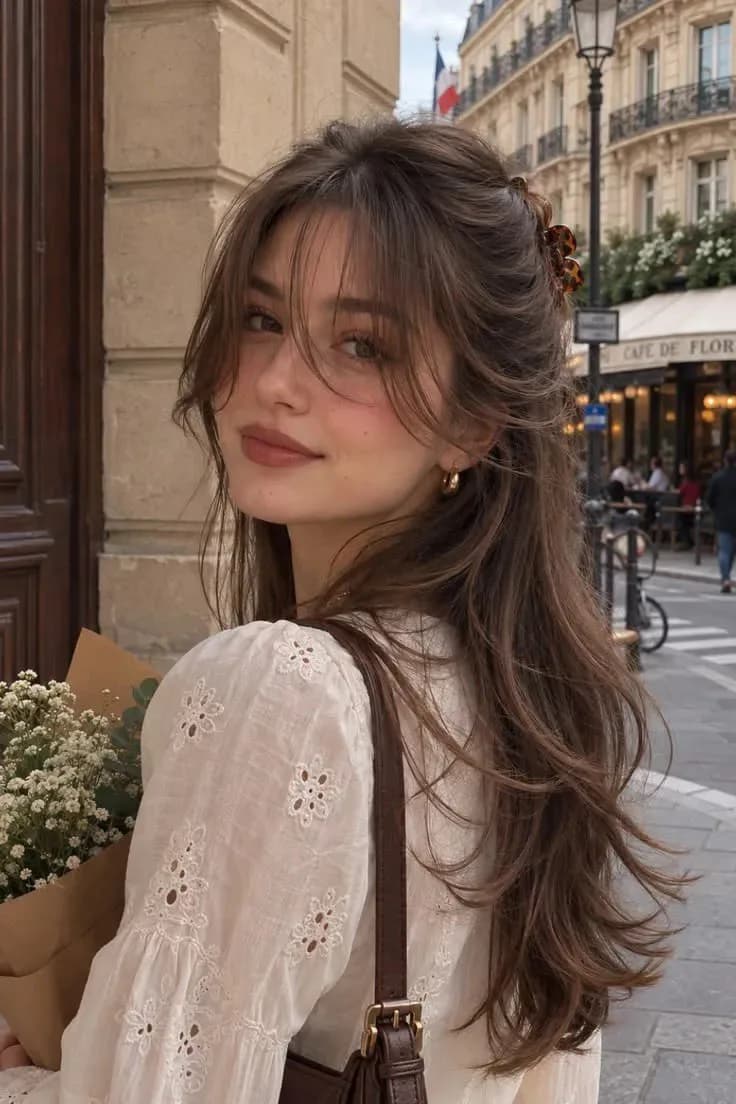
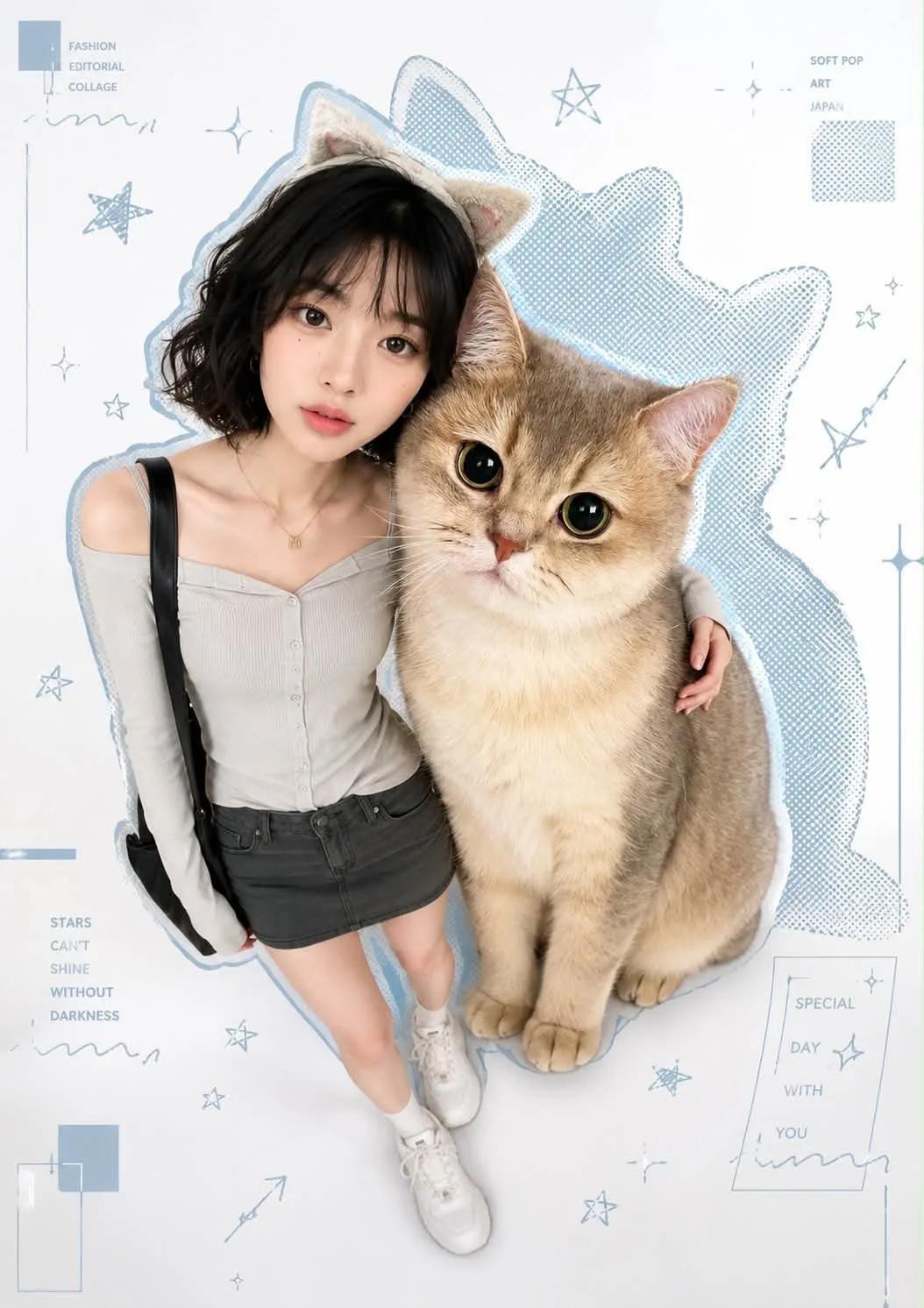
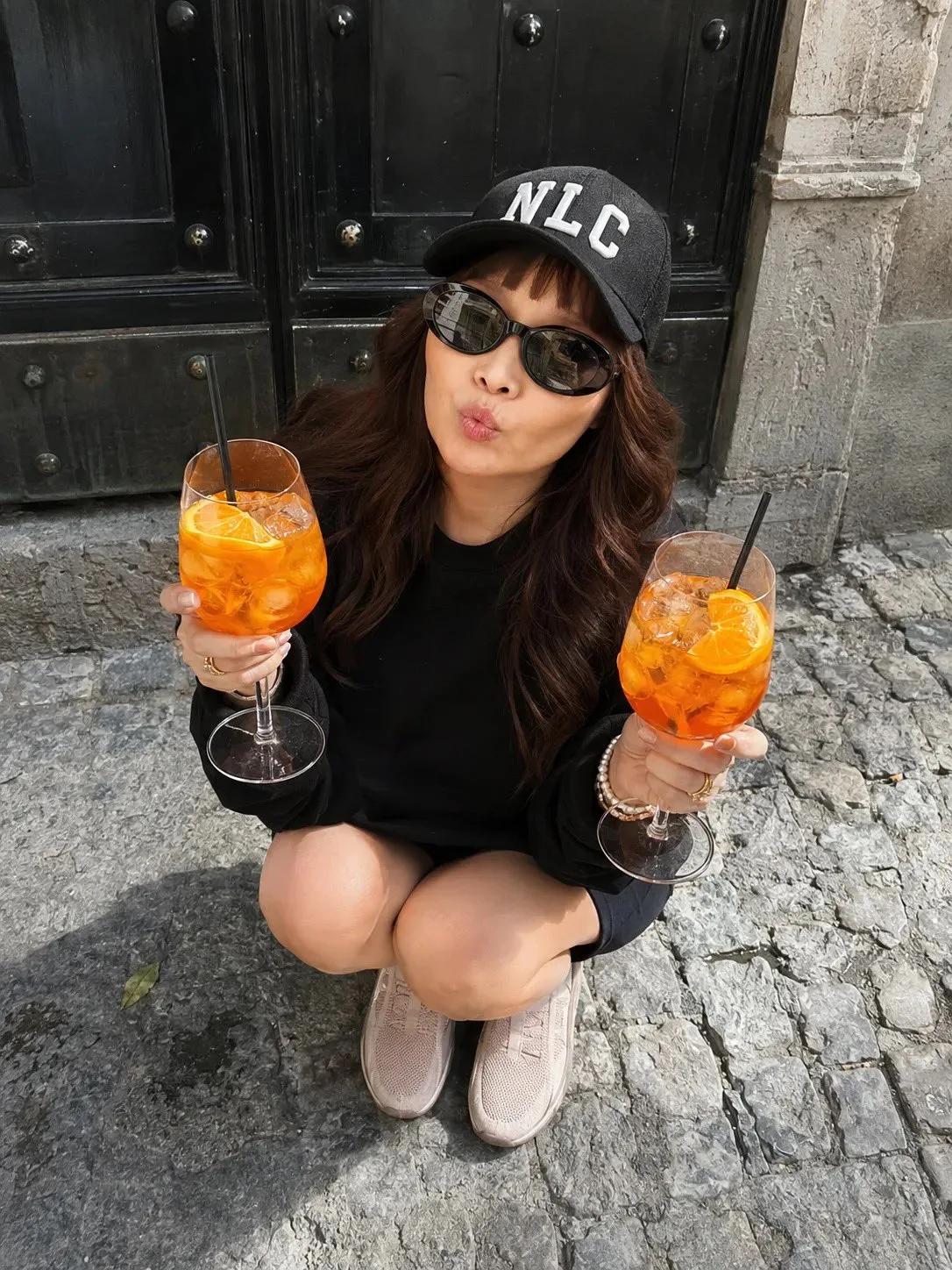
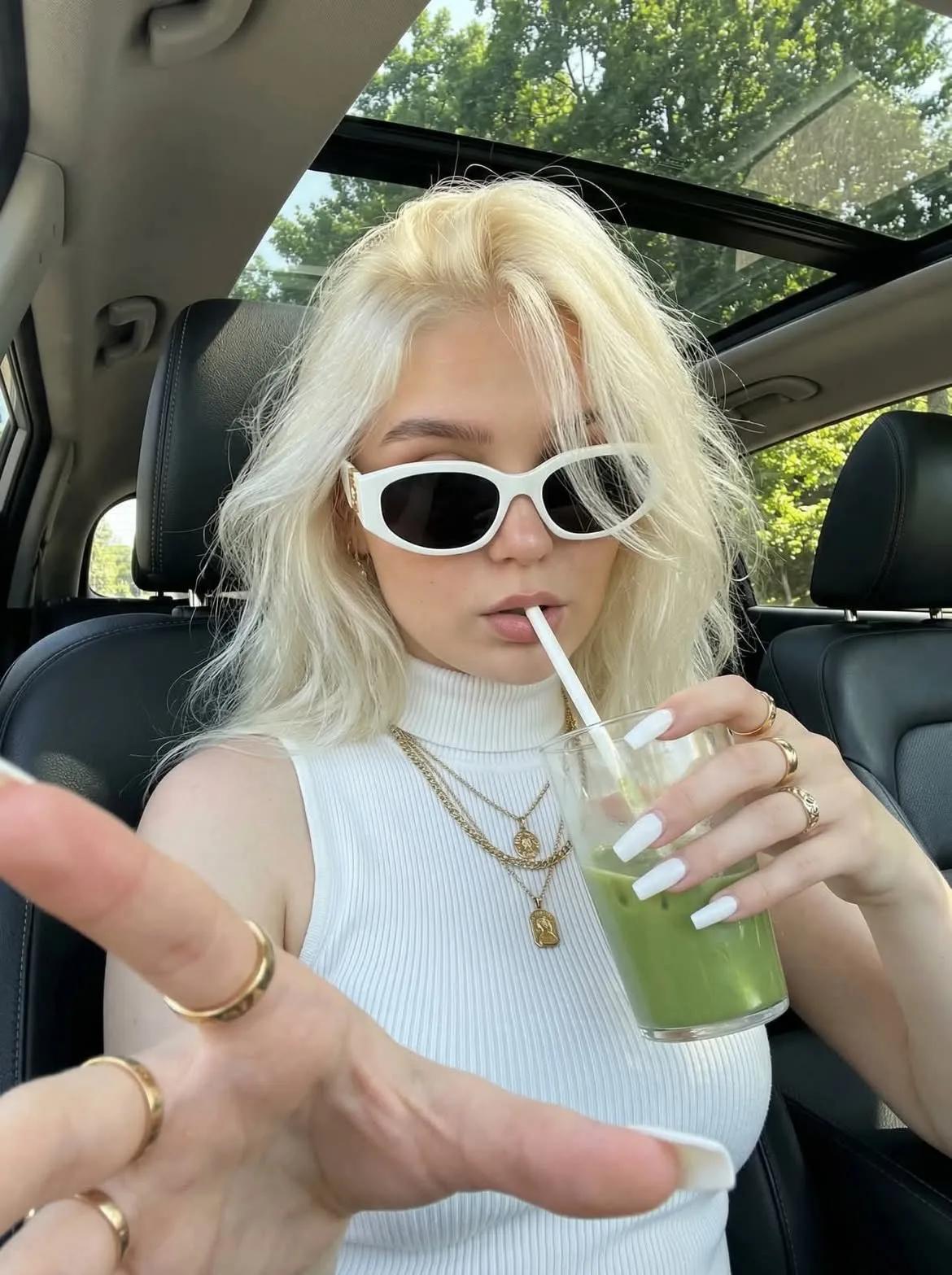
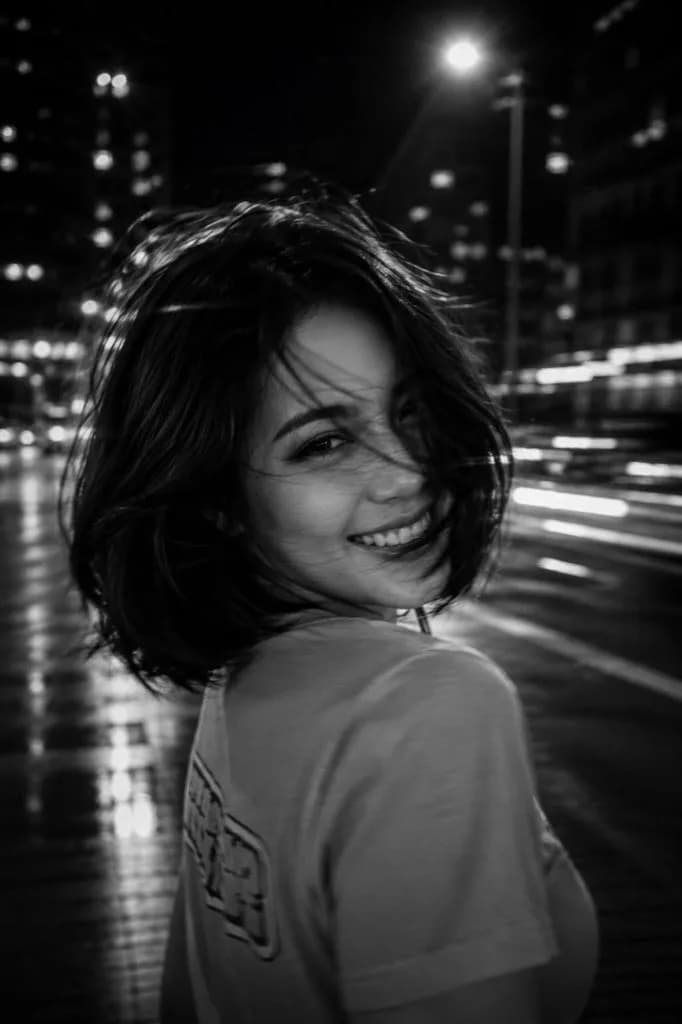
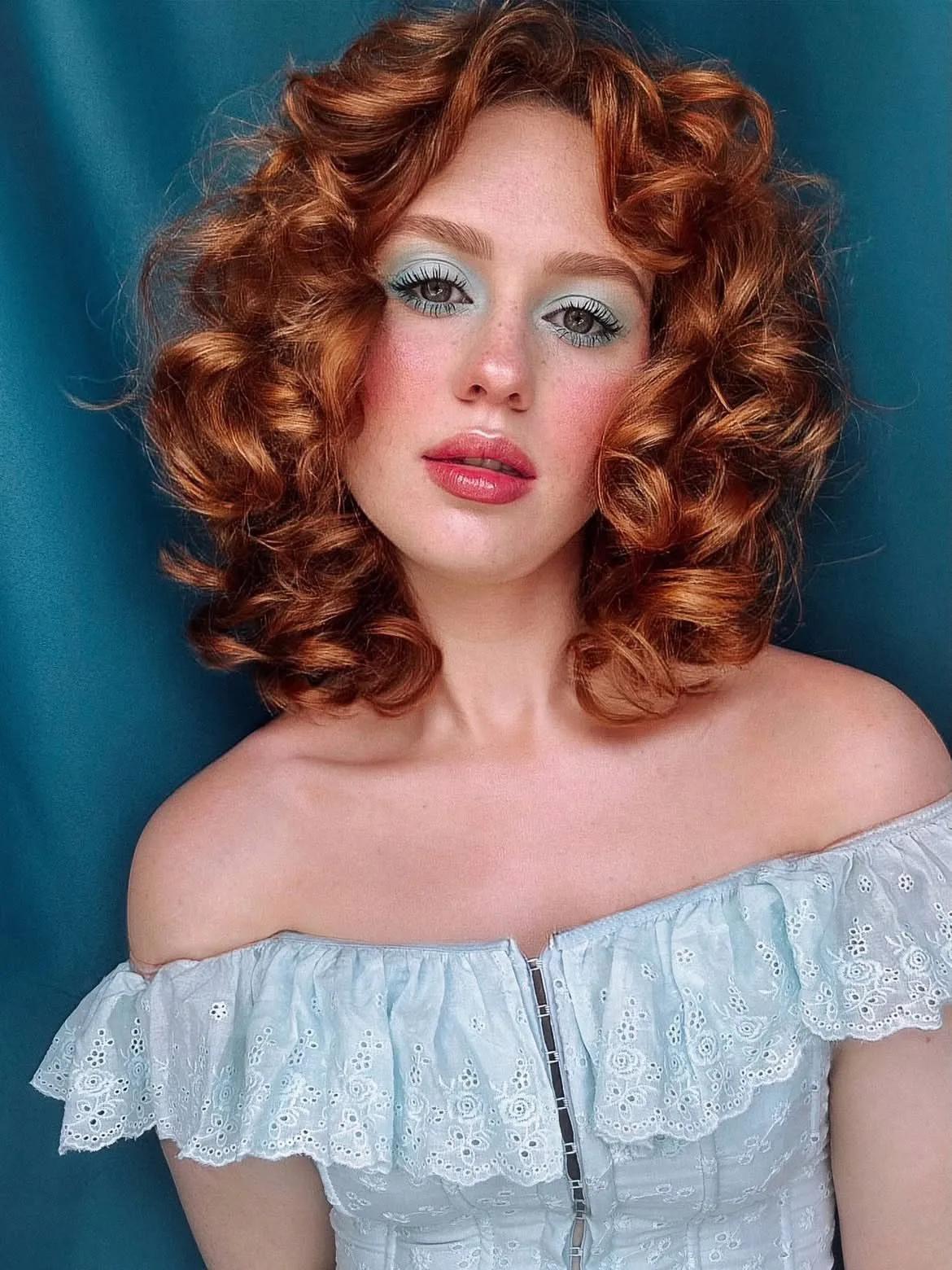
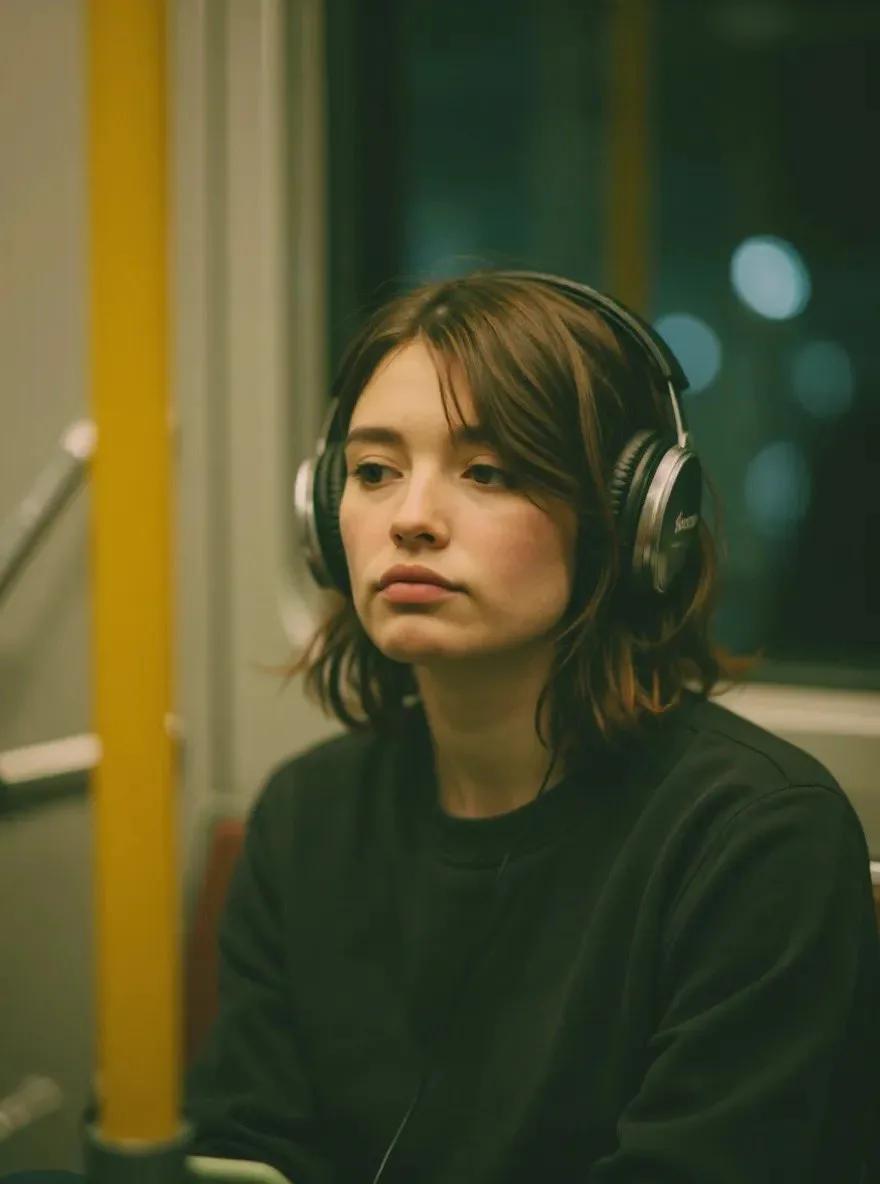
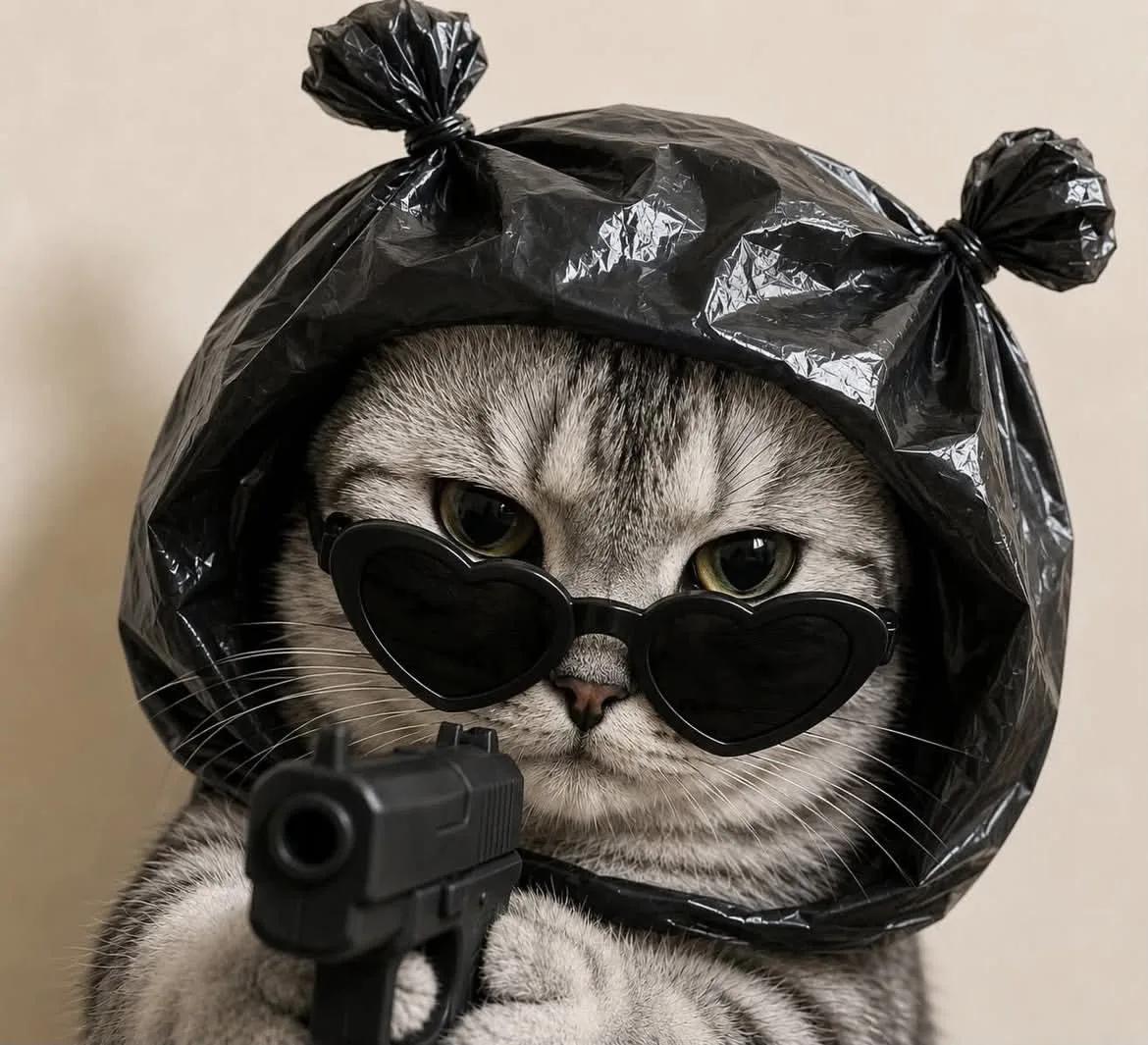
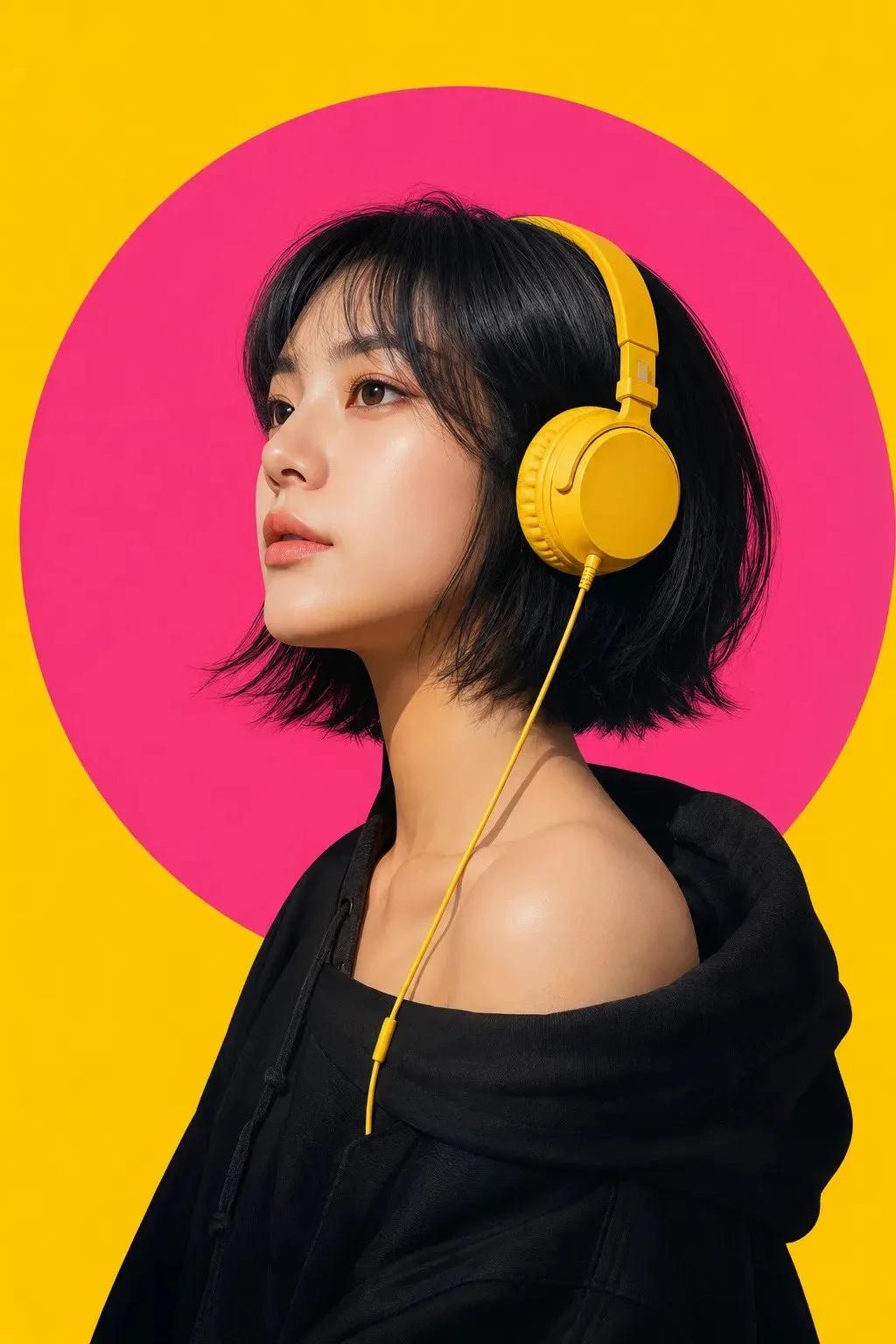
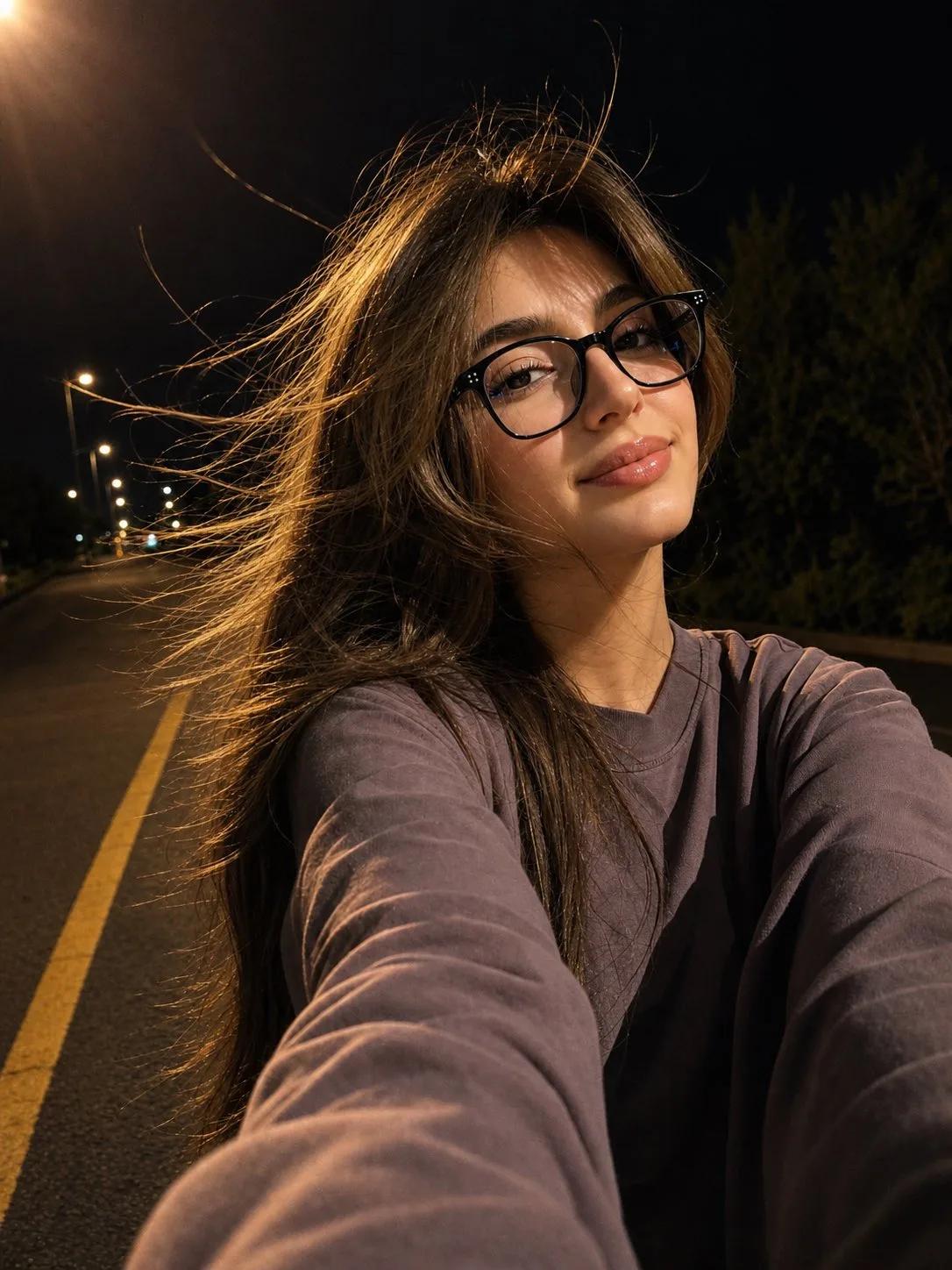
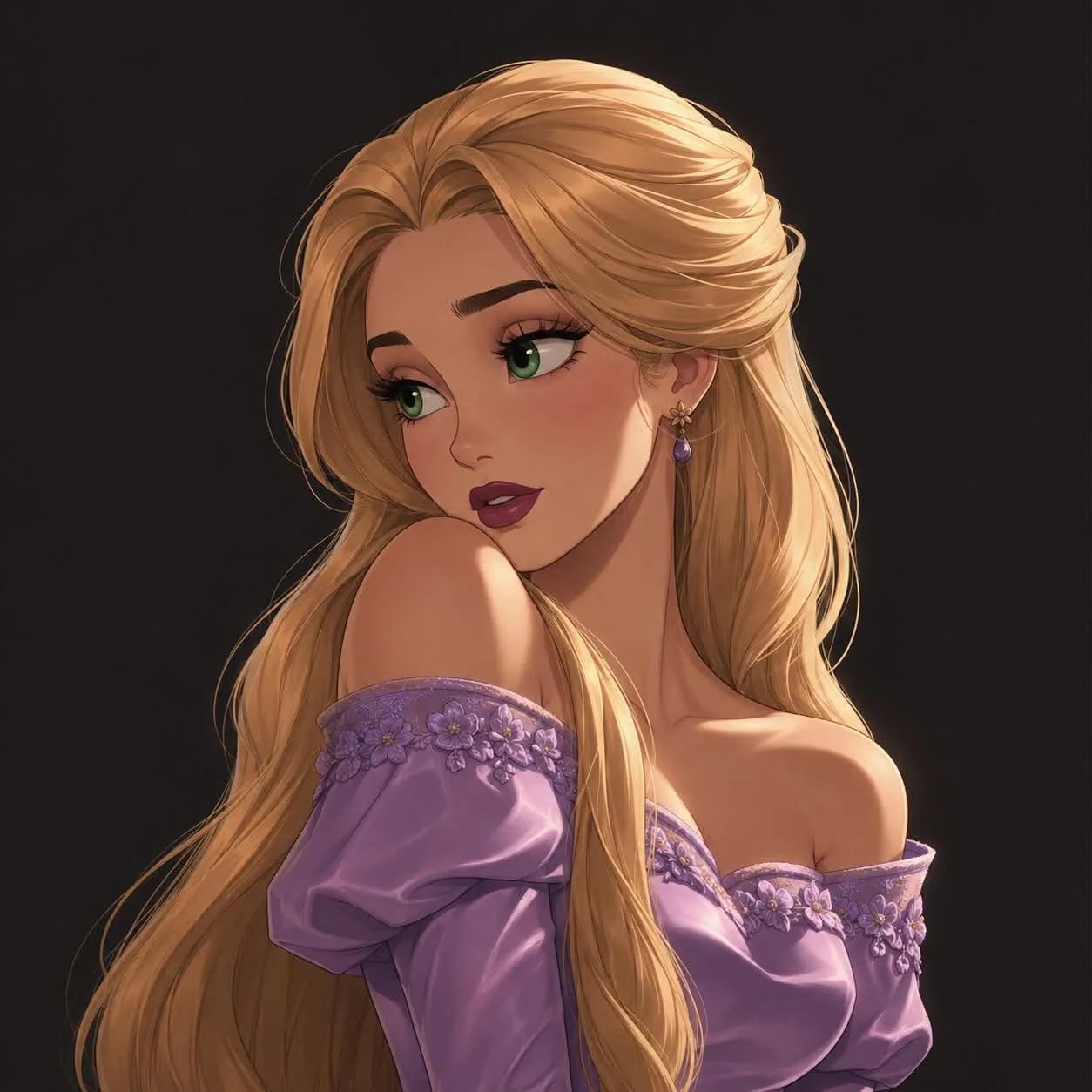
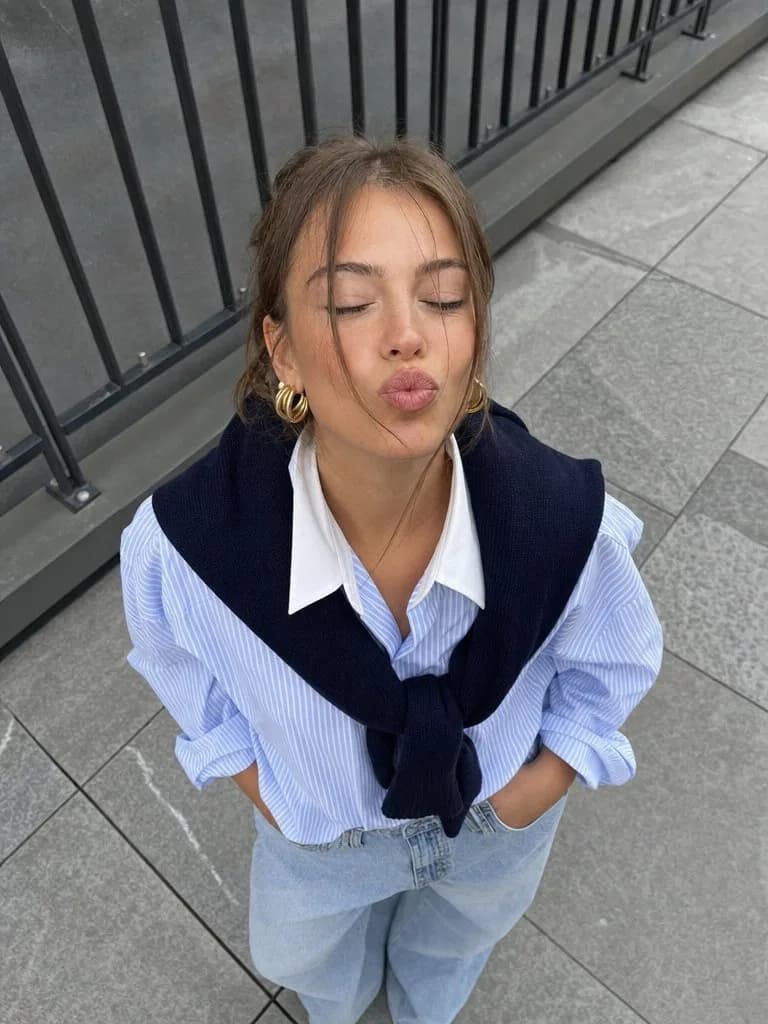
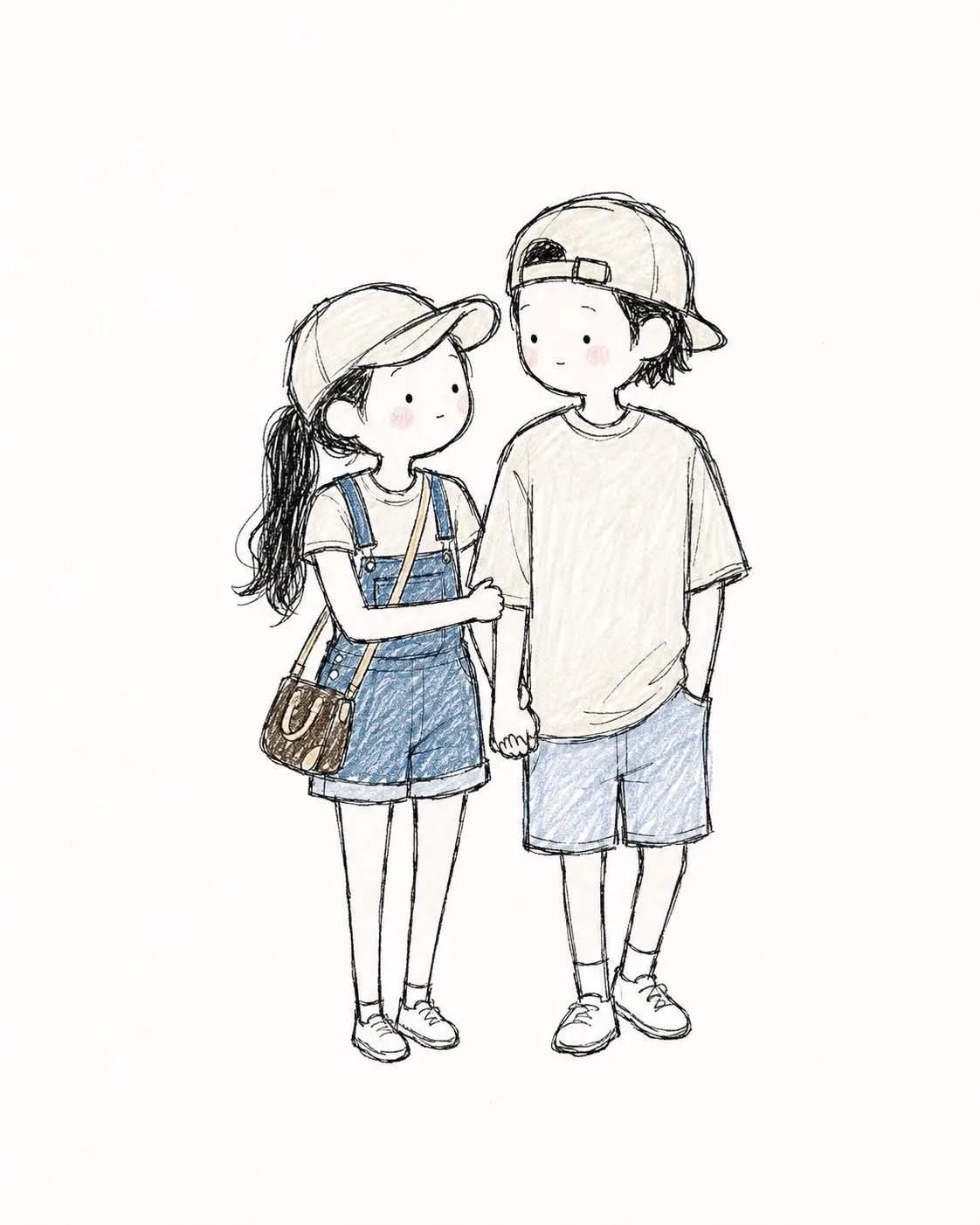
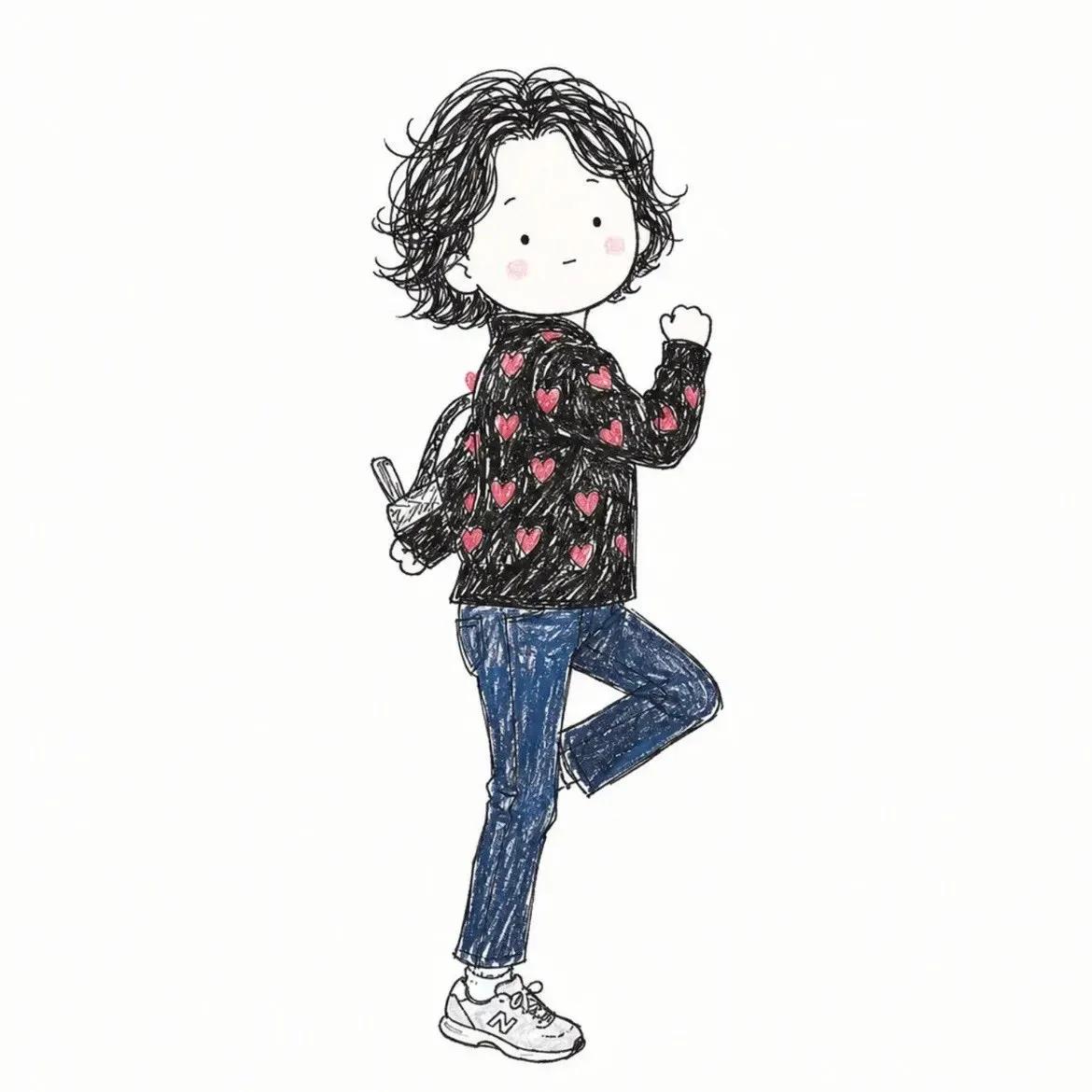
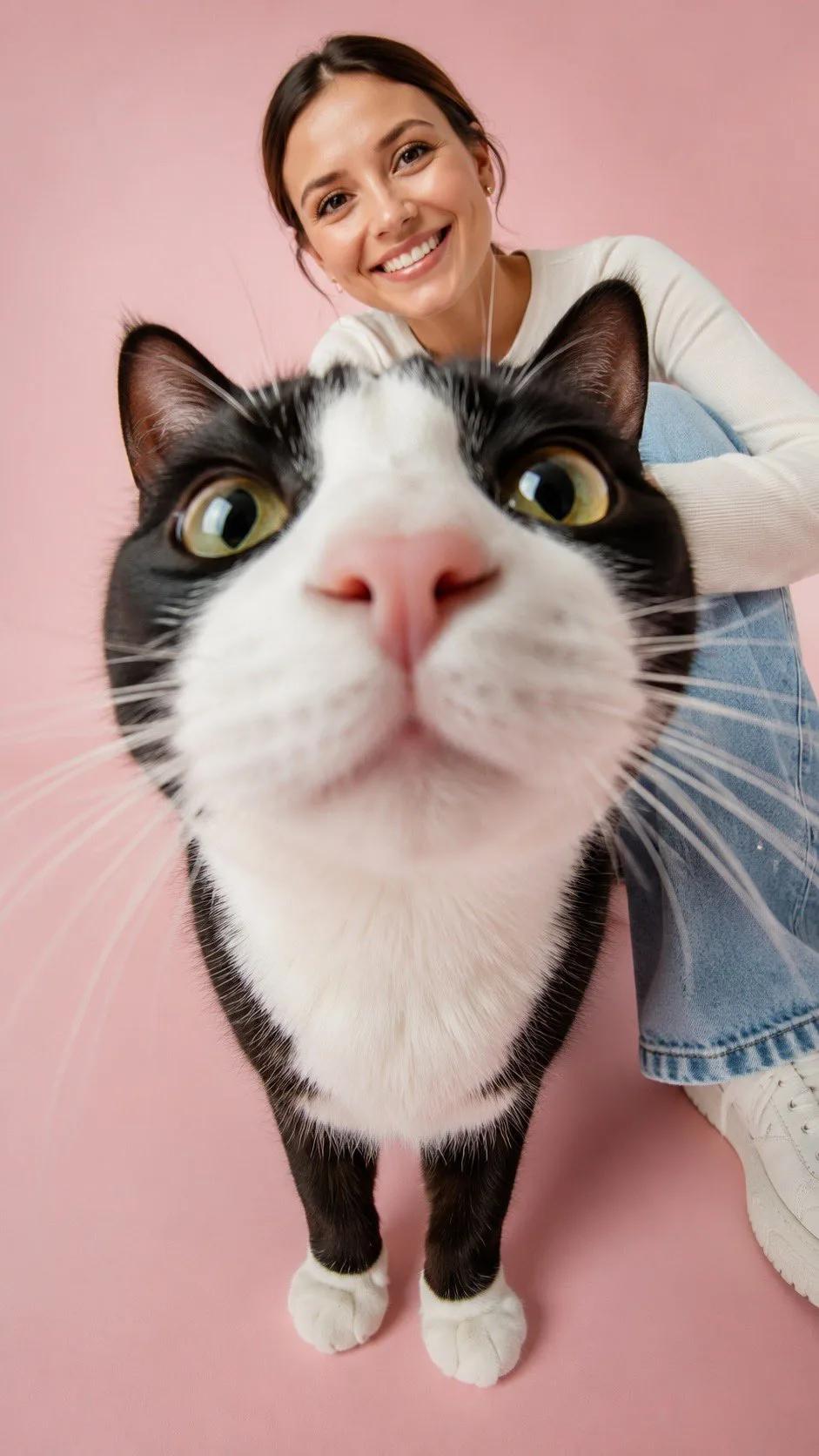
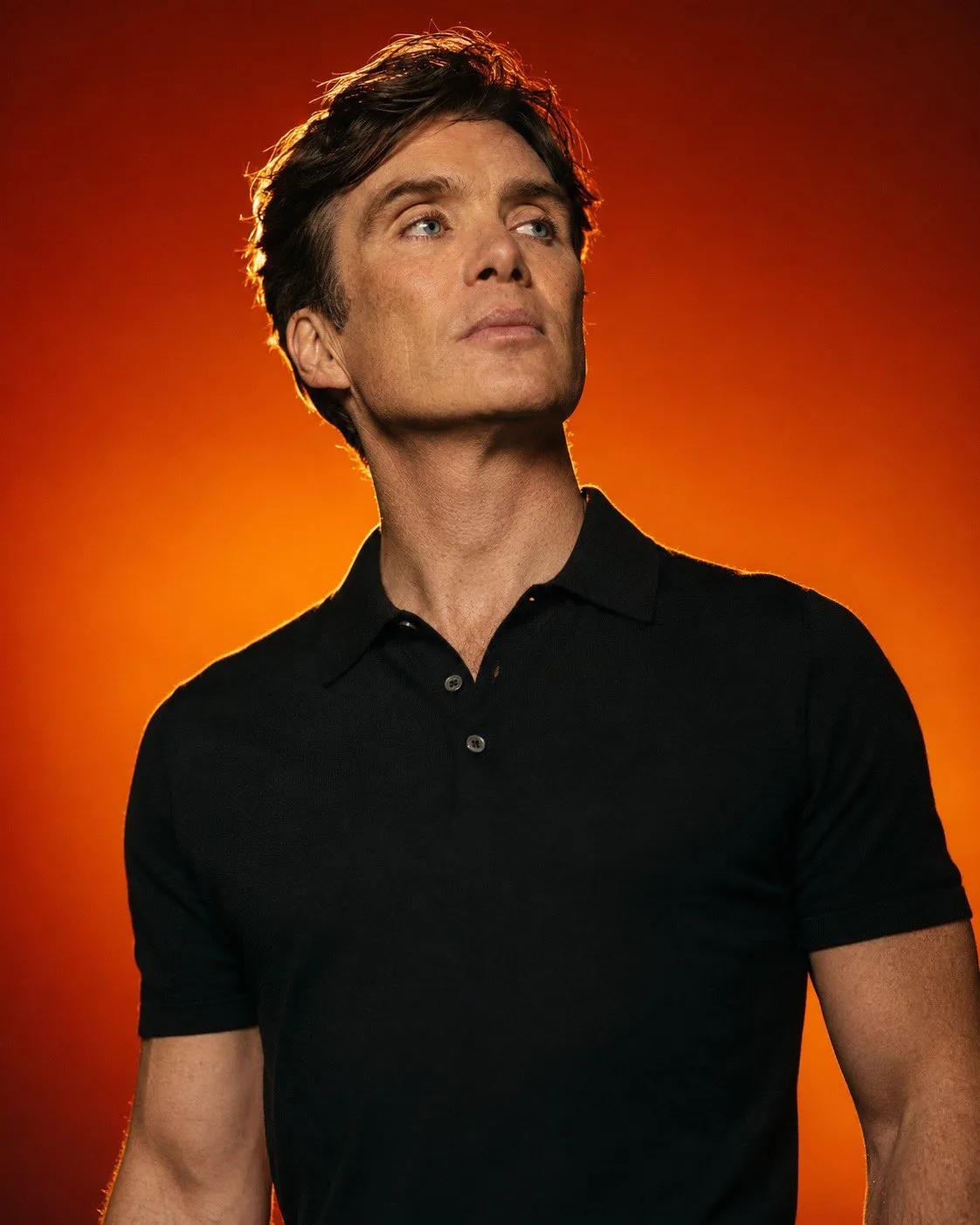
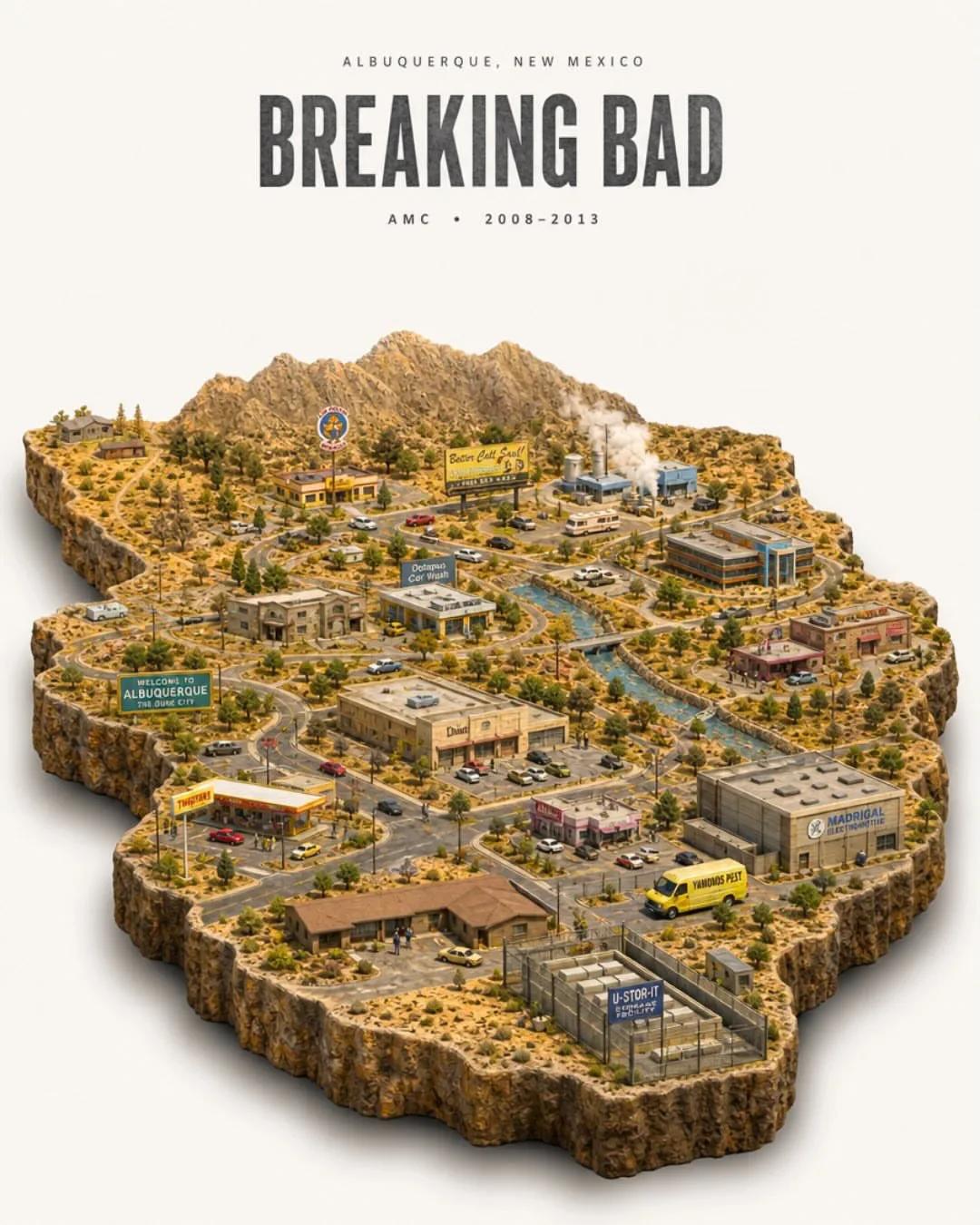
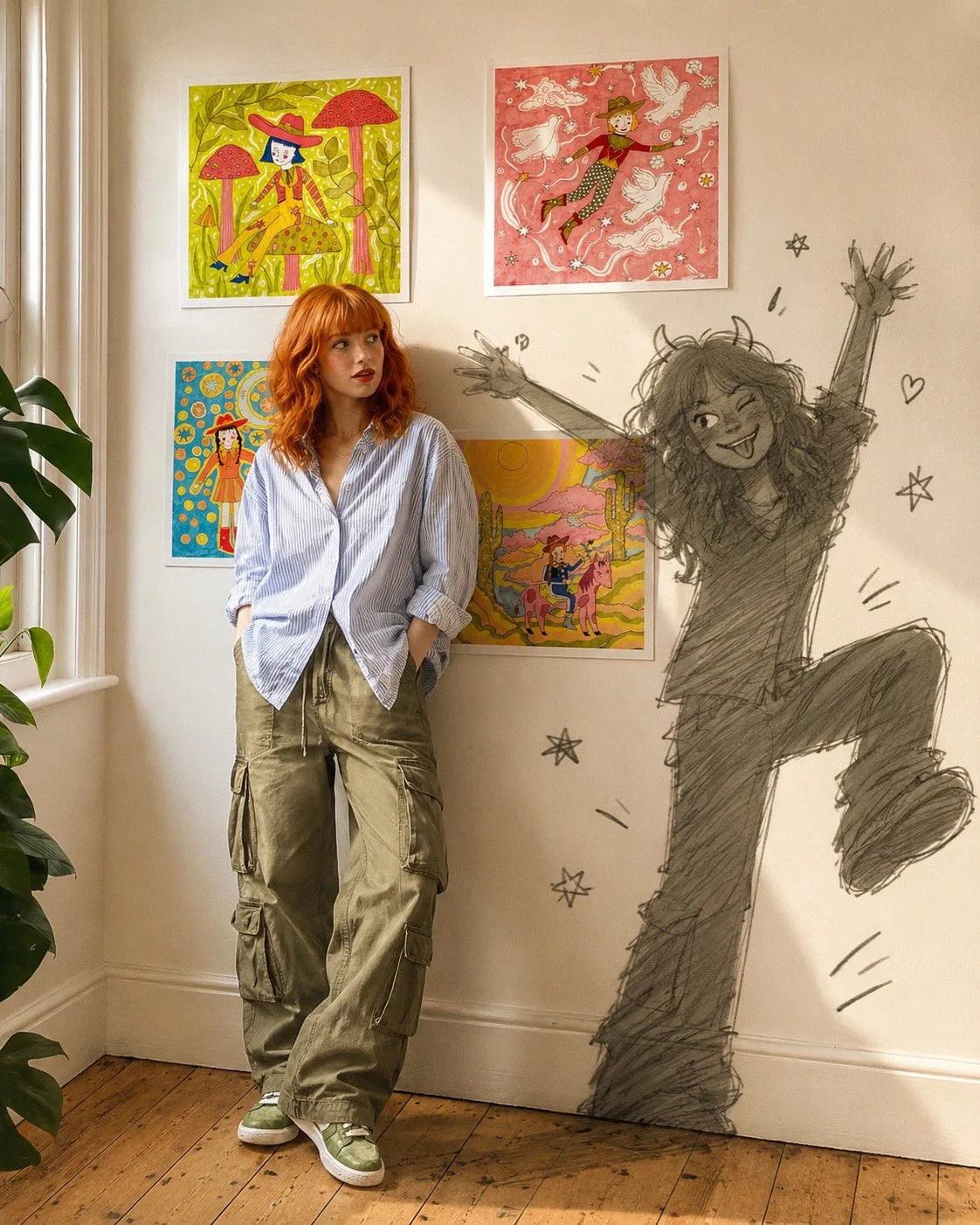
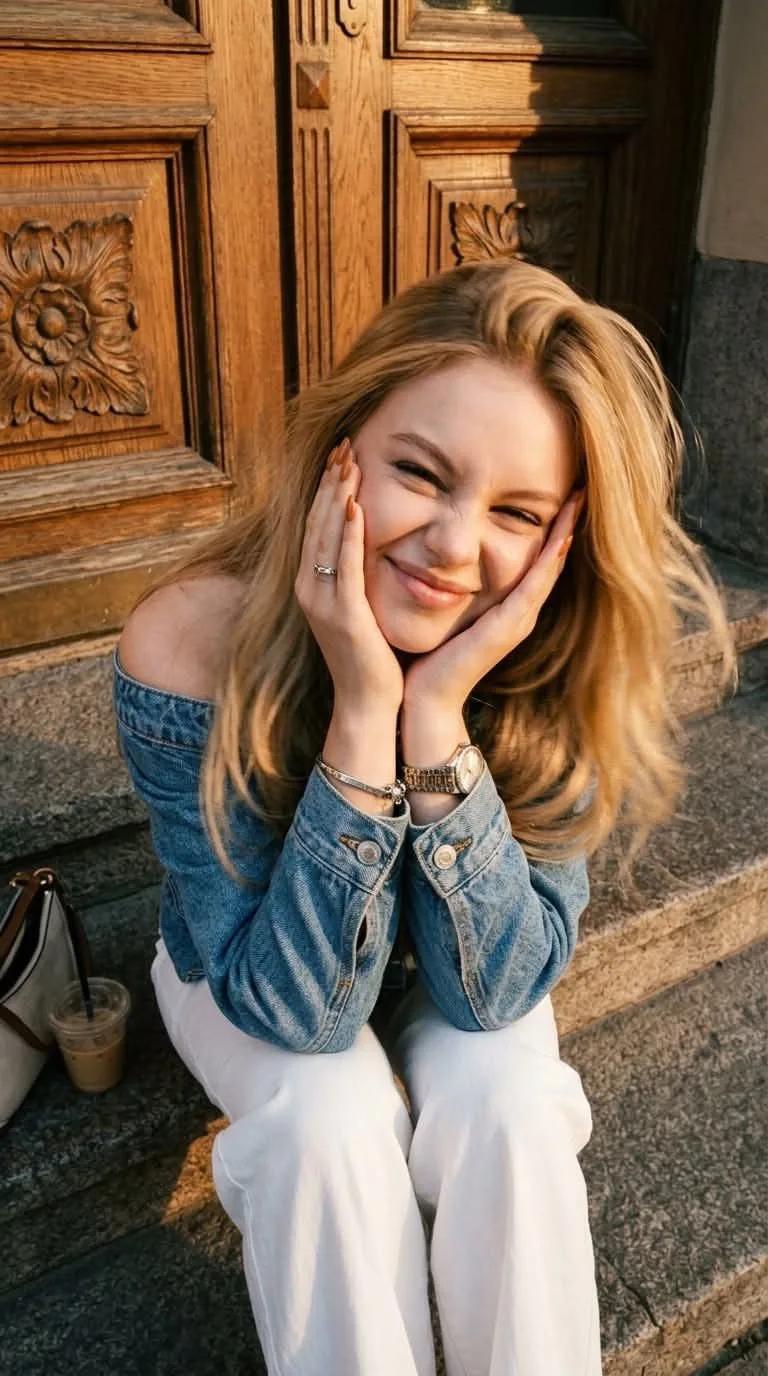
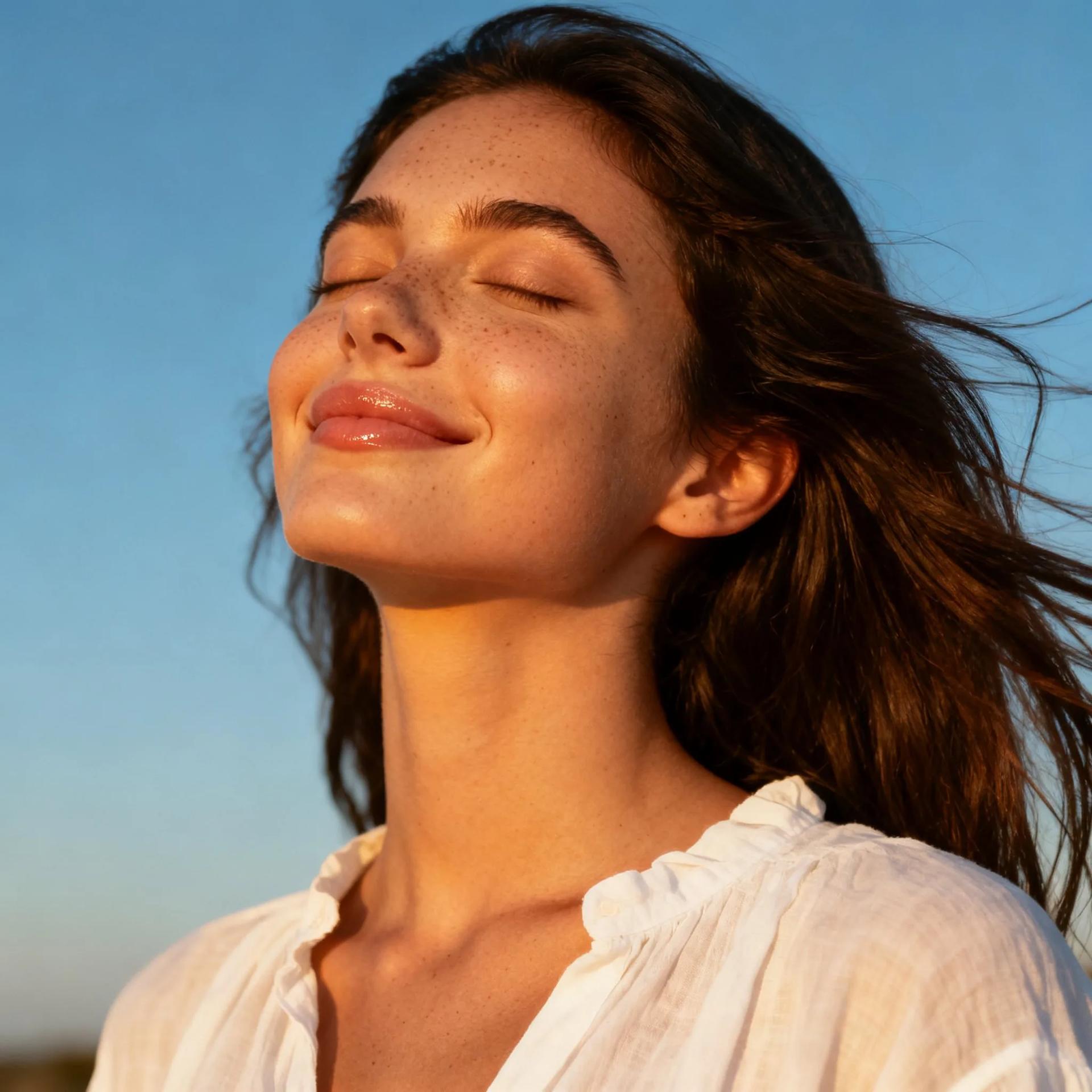
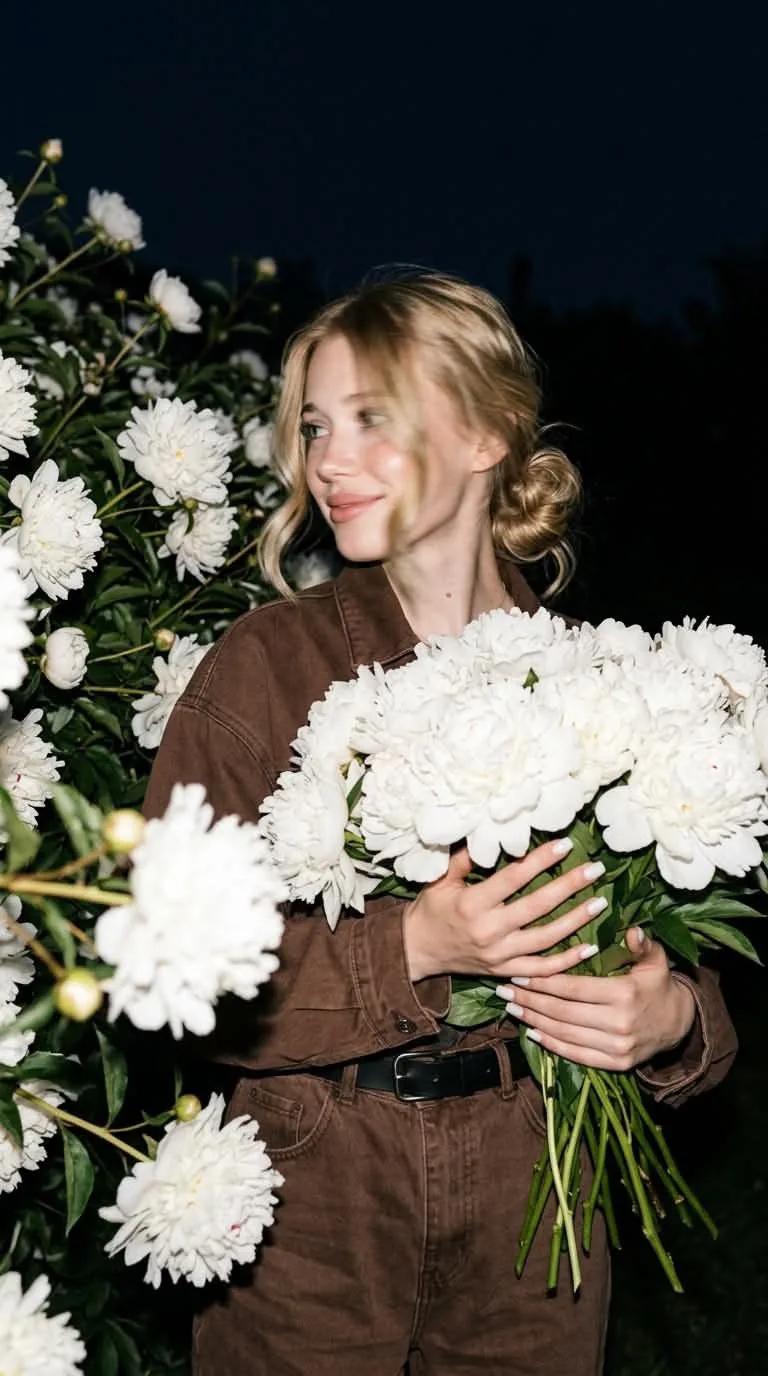
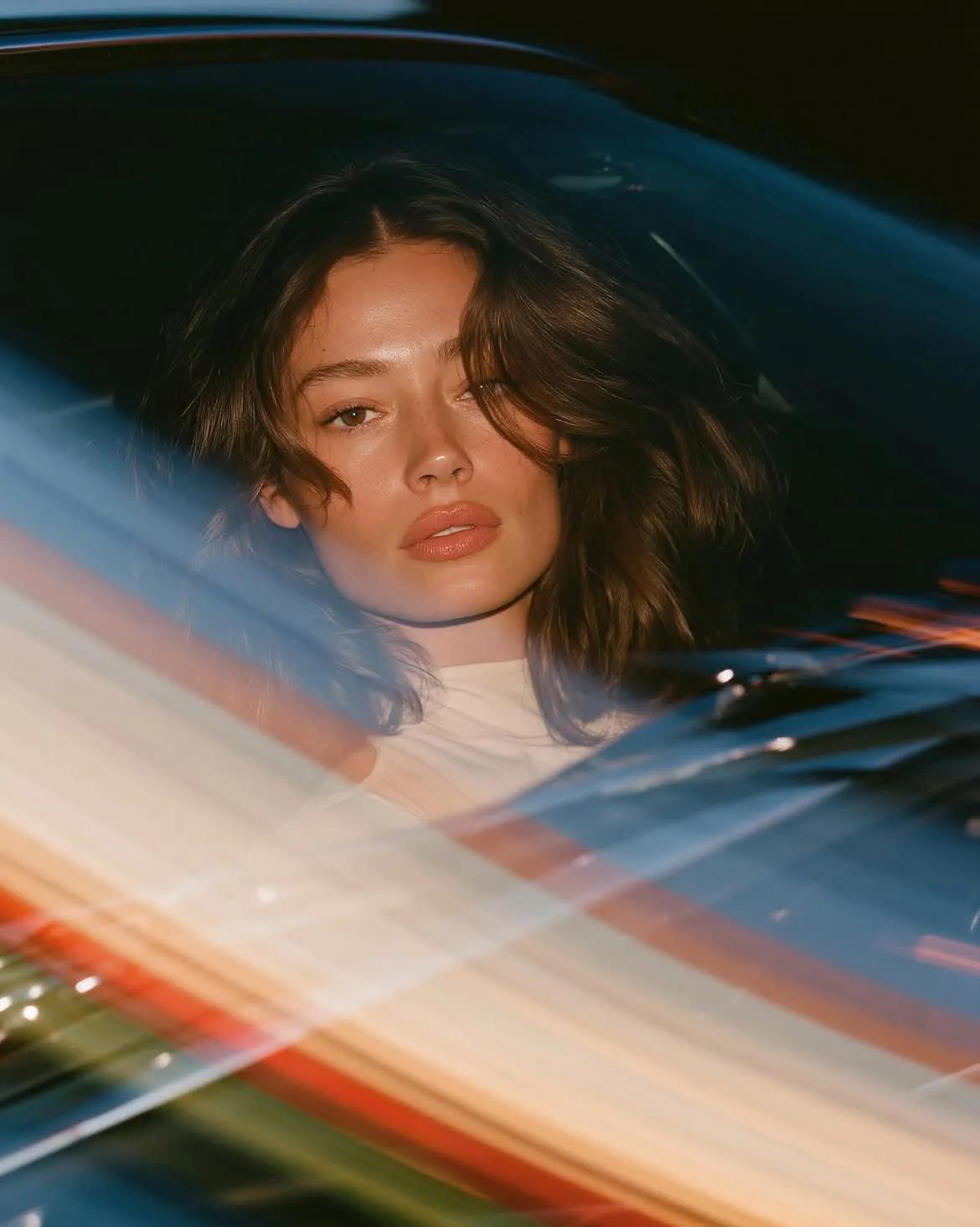
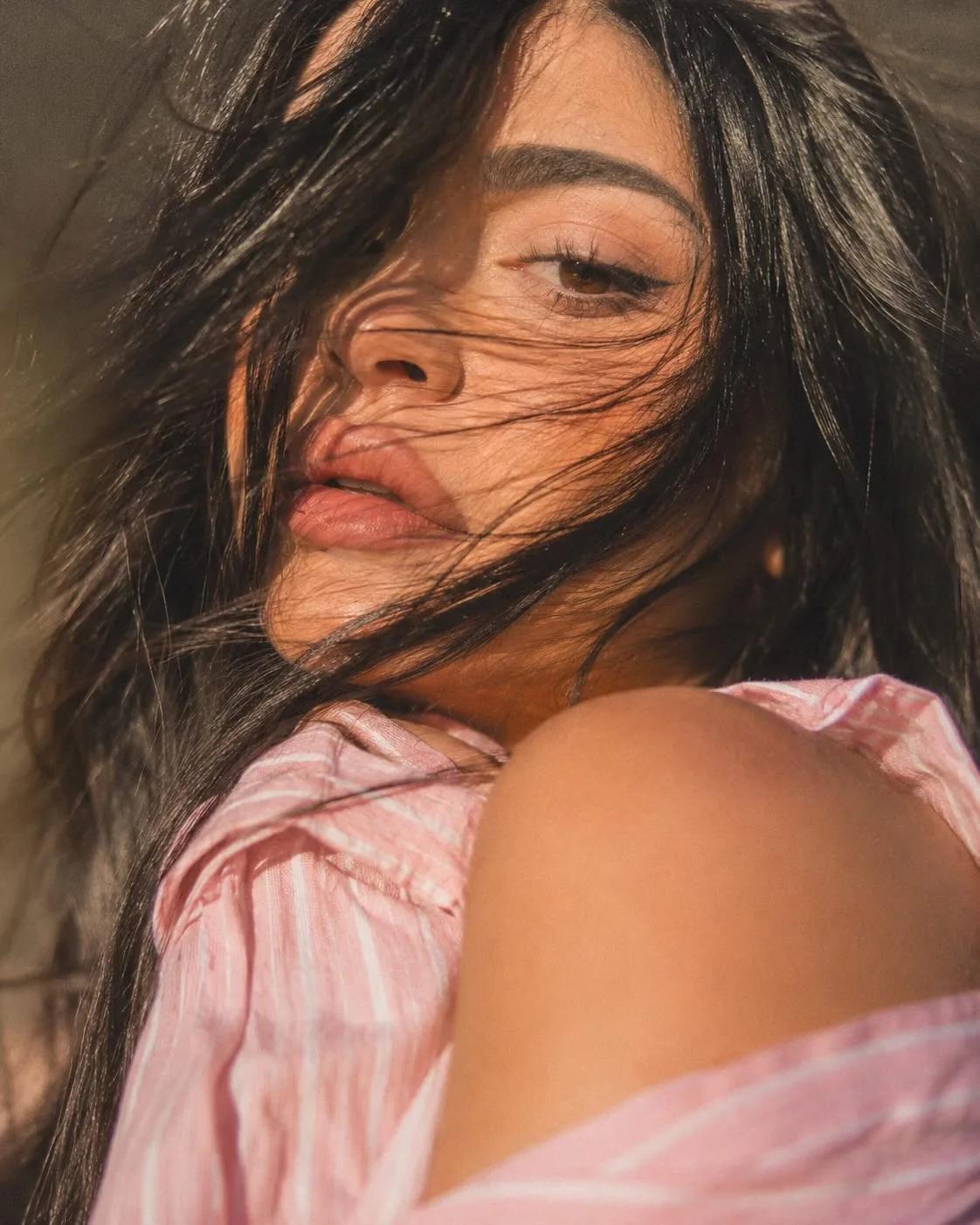
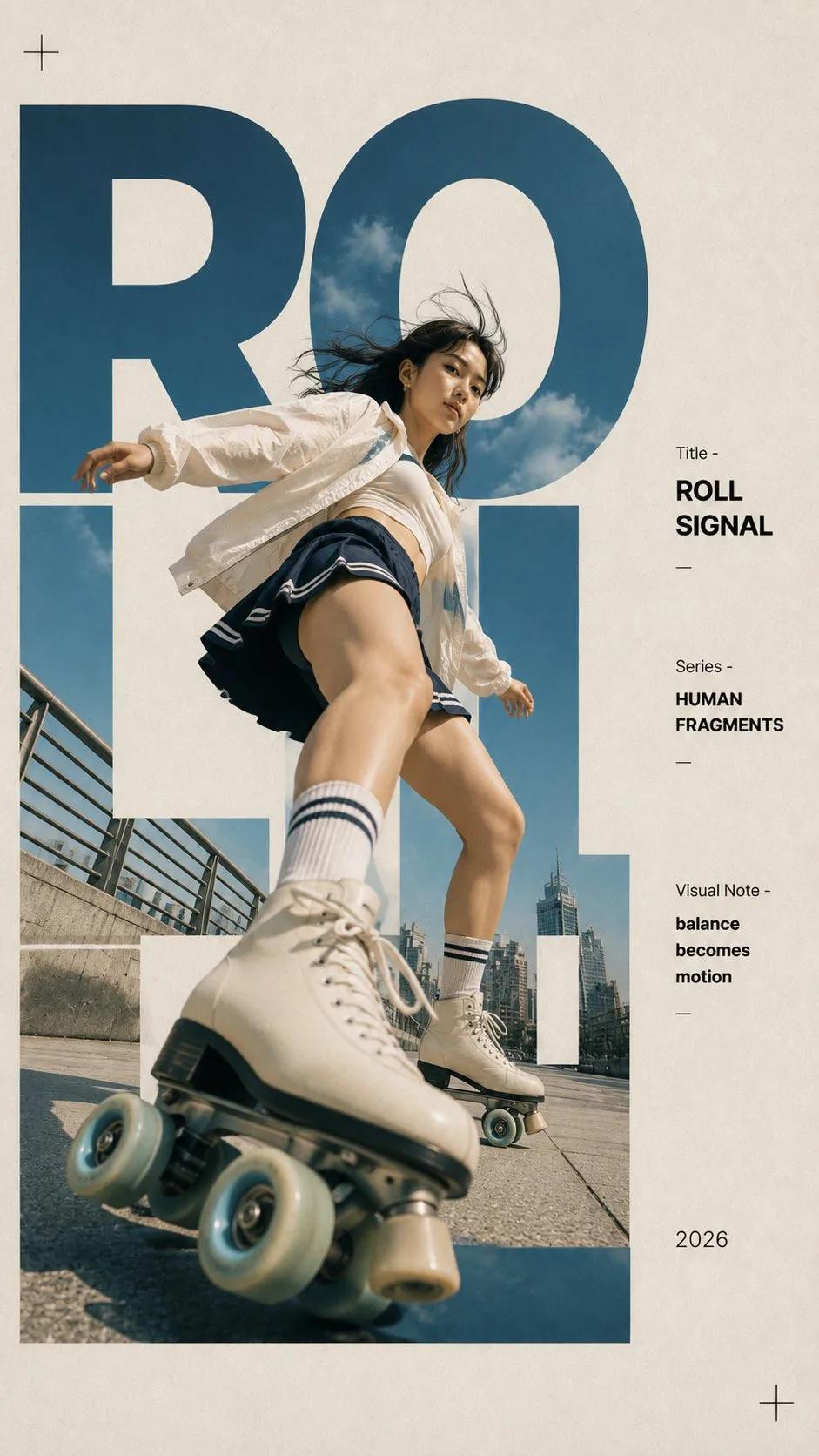
Browse real images created with GPT Image 2 and open one that matches the direction you need.
Inspect the full sourced prompt, then reuse it as written or change the subject, setting, and art direction.
Open the Inspia workspace with GPT Image 2 selected, review the live options and Credit cost, then generate.
Continue into Inspia's published image taxonomy.
They are text instructions used to create or edit images with GPT Image 2. Inspia pairs each sourced prompt with its real result so you can judge the direction before reusing it.
Yes. Open any prompt in the workspace and edit the text before generating. The original sourced prompt remains available to reset or copy.
Yes, when the live GPT Image 2 capability is available. You can use the selected prompt image as a reference or choose an image from your Assets, then remove or disable it before submission.
No. Browsing, opening, copying, and editing prompts are public. An Inspia account is required only when you submit a generation or use private account features.